

Online ordering manual
Order online, step by step
From uploading and configuring files to saving a quote, paying and reordering. For a short video introduction, see how ordering works.
Still preparing your drawing? The detailed drawing guide covers vector lines, dimensions and a clean production file.
Before you start
The ordering portal is for orders you can configure entirely online using a production-ready vector file. This works for a single part, a small batch or a large production run, provided the material, processes and delivery fit the available options.
Decide in advance:
- which file version you want to produce;
- the required size and quantity for each design;
- which lines should be cut, line engraved or area engraved;
- the required material and thickness;
- the required production speed and delivery option;
- the correct billing, delivery and payment details.
Use an AI, EPS, DXF, SVG or PDF file with usable vector lines. JPG and PNG files are not production drawings. Before uploading, check the drawing guidelines or use the detailed drawing guide.
From upload to order
From upload to order
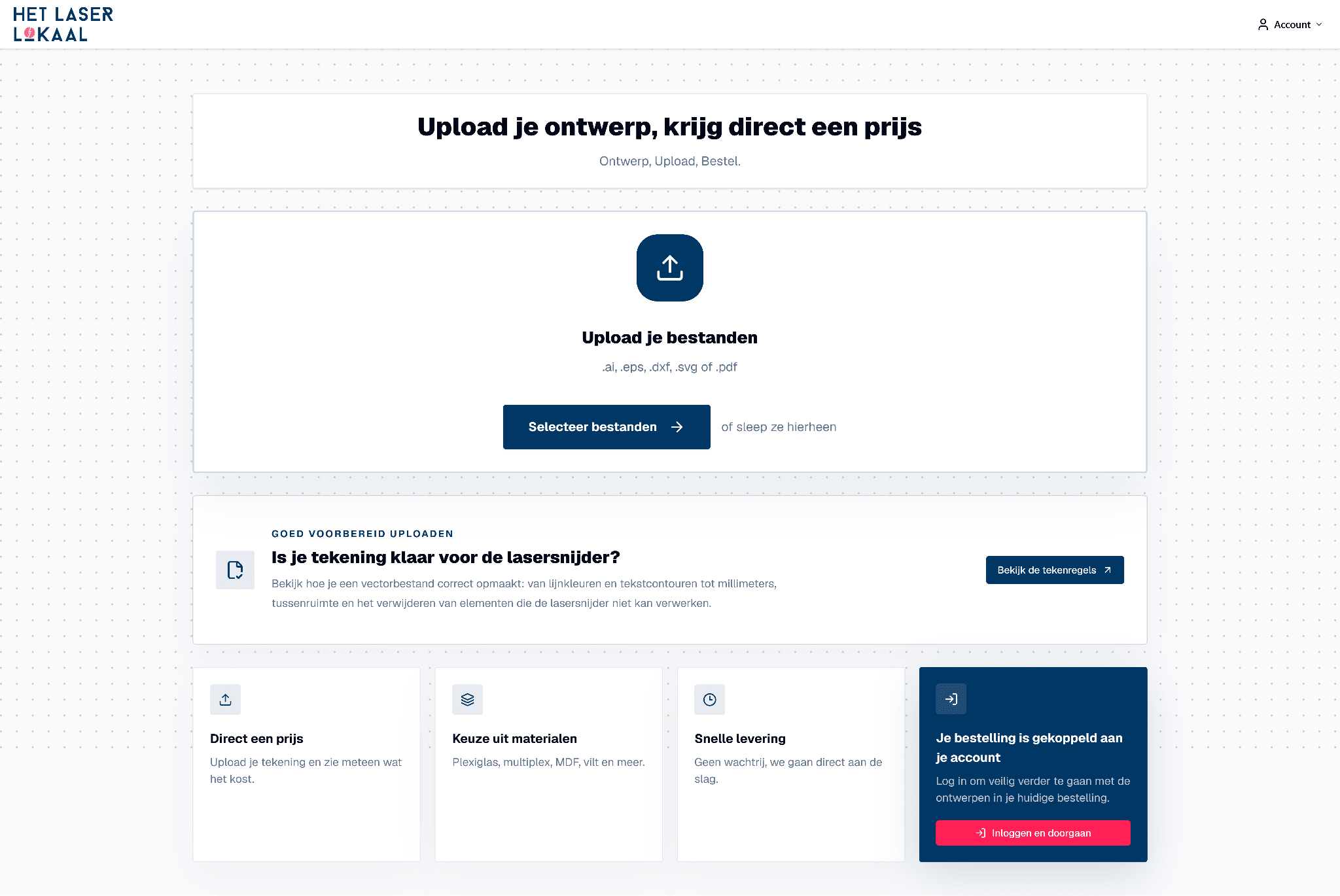
You start on the homepage. After the upload, you work from a single project overview, in which you set up and check each file individually.
-
Stap 1
Upload your design
First check your drawing →On the home page, choose one or more AI, EPS, DXF, SVG or PDF files. Different designs may be combined within one order. After uploading, each file is on its own card and you set the material, edits and quantity per design separately.
Compare the upload preview directly with the source file. Check outer contour, holes, letters, small details and engravings. Appears 'Upload completed with warnings'? Open 'View in design details' and read exactly what image, text or other content was skipped before continuing.
-
After uploading
Your project overview
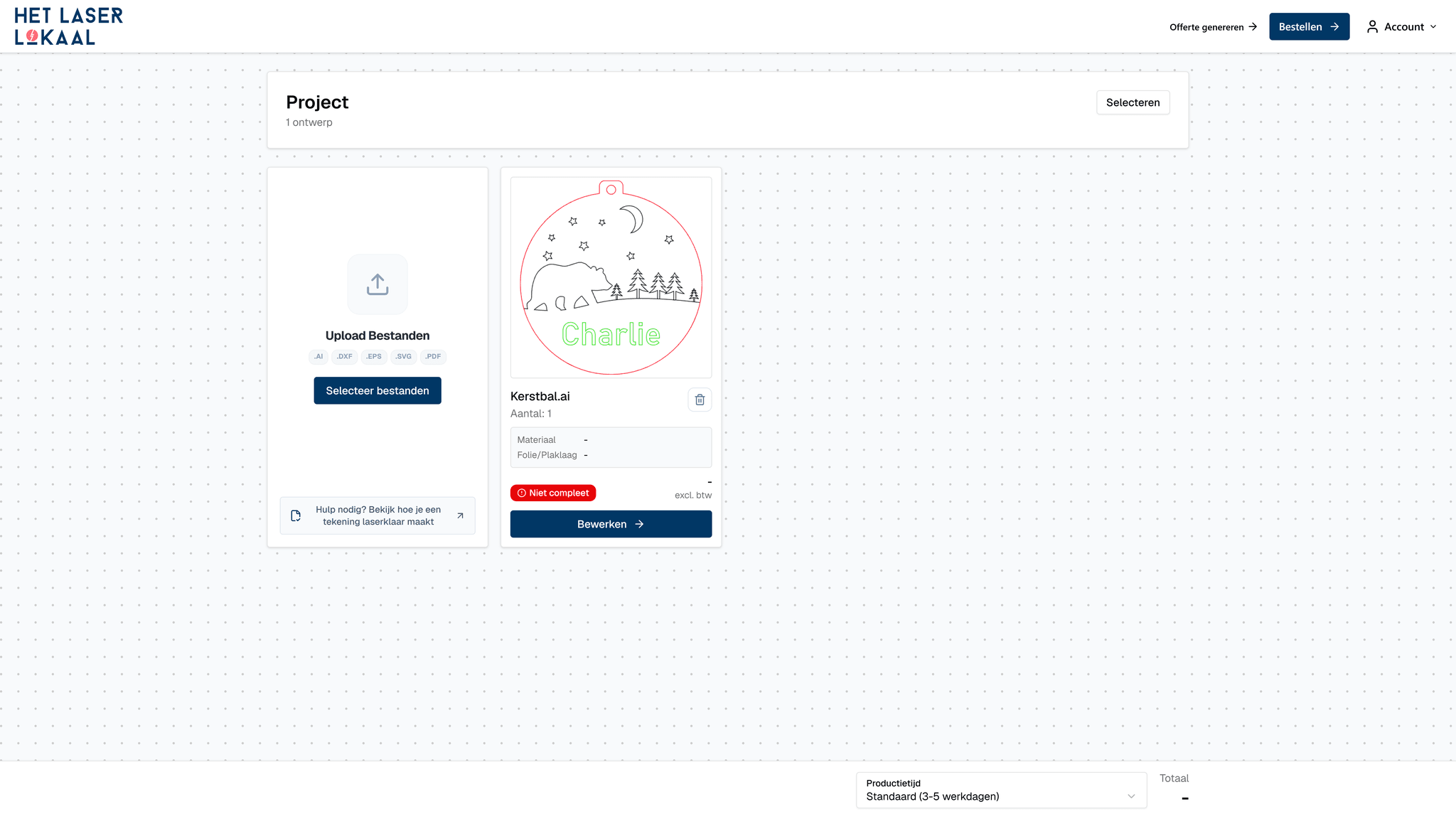
After uploading, you arrive at the project overview. This is the central workspace for your order: each design has its own card with a preview, filename, quantity, selected material and status.
You can add more files on the left. A new card initially has the status “Incomplete”. Select “Edit” to open the file and set its dimensions, processes, material and quantity. You return to this overview from the design details.
-
Stap 2
Open a file
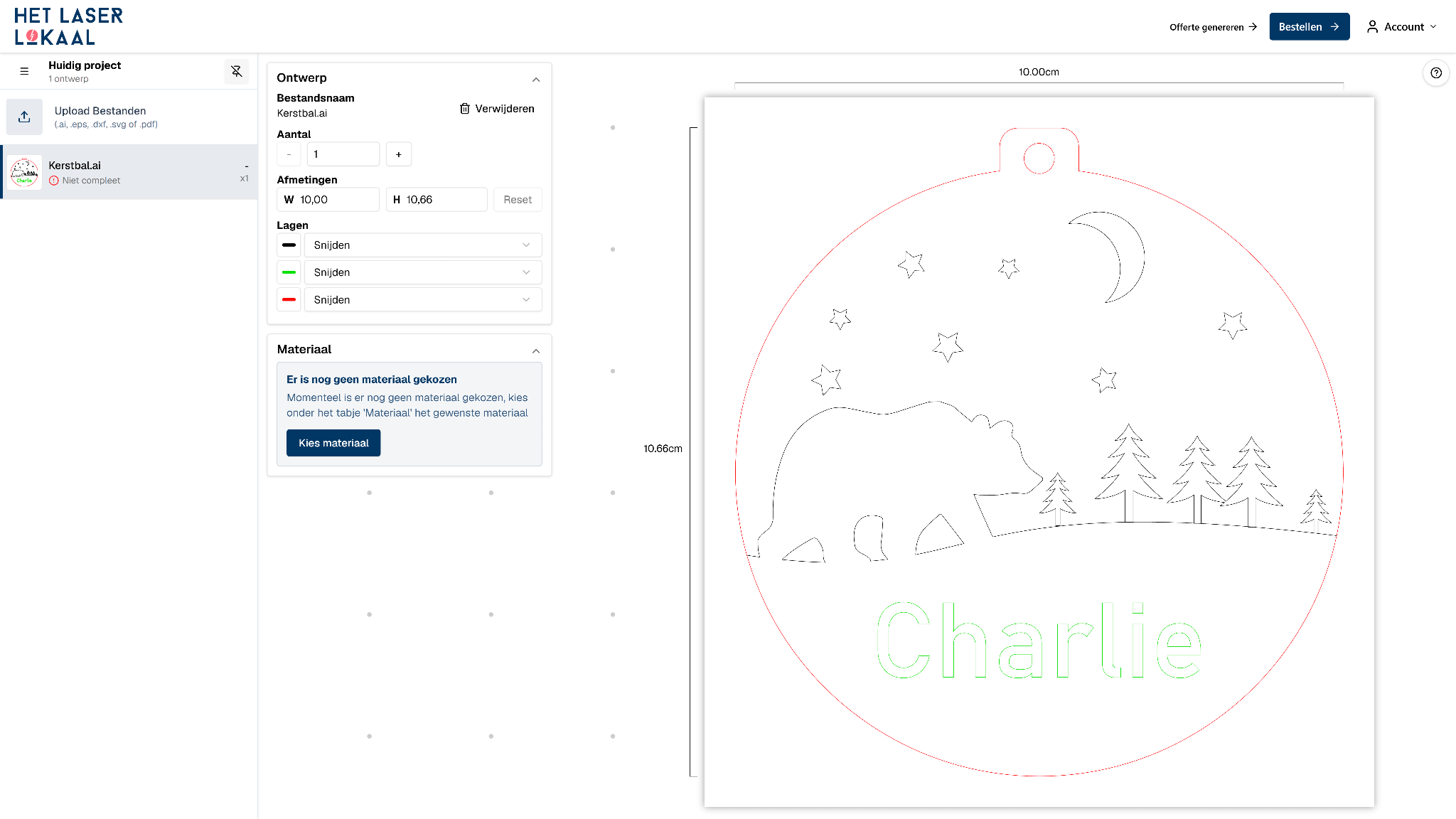
Select “Edit” for the design you want to configure. You work on one file at a time. Use the project overview to return to all files and move to the next design.
Check the outer dimensions, critical internal dimensions and what one copy of the file produces. If one file contains a complete set or multiple parts, the entered quantity applies to the entire file. Preferably correct an incorrect dimension in the source file, export it again and upload a clearly named new version. If in doubt, read the guidance on scale, dimensions and layout.
-
Stap 3
Choose number and operations
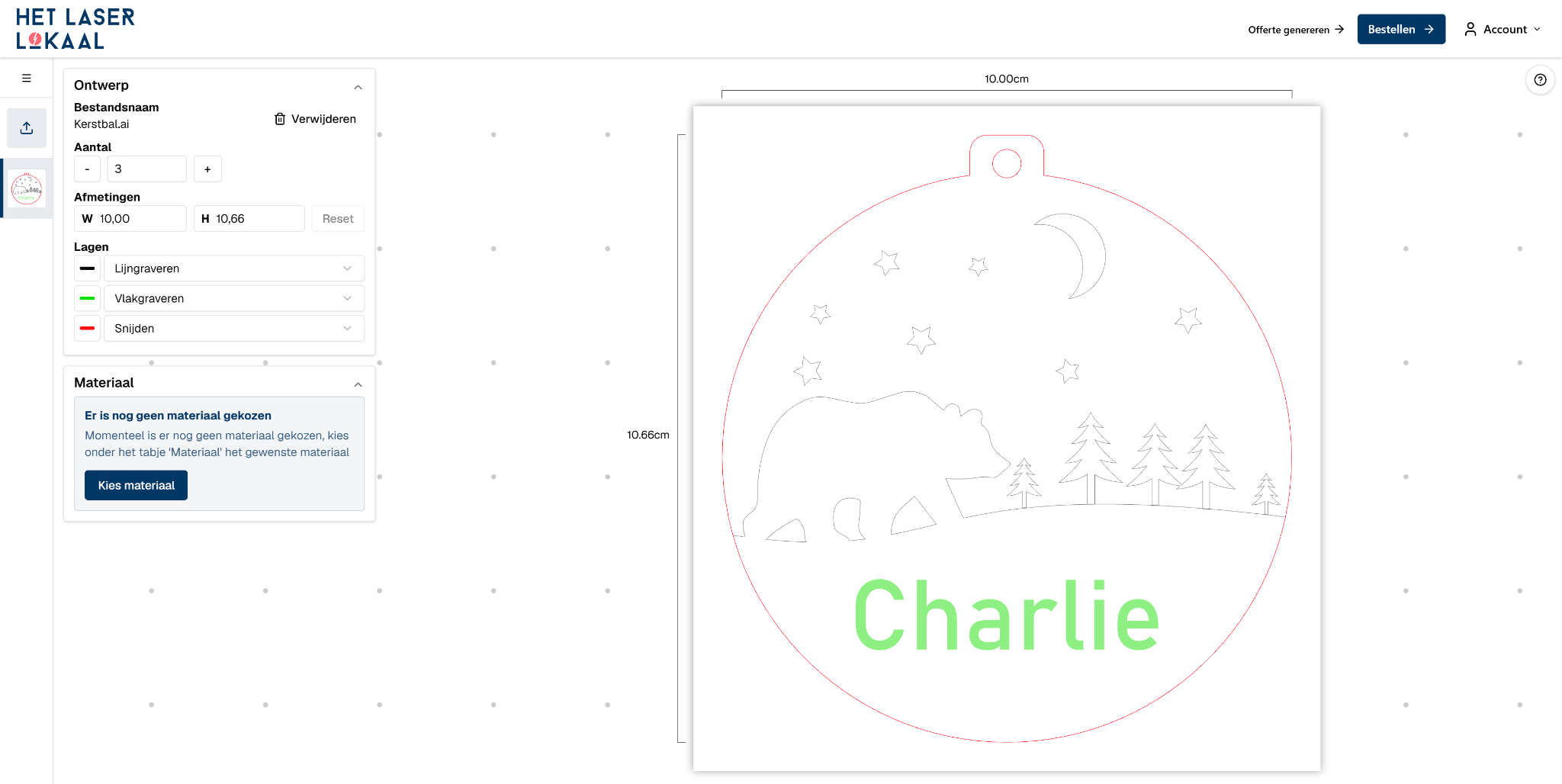
Enter the required quantity and assign each line colour to cutting, line engraving or area engraving. A colour does not have a fixed production function automatically: you assign the process after uploading. The supported line colours and file requirements are listed in the drawing guidelines. Then check the preview again.
Is something missing, is a logo shown as a cut-out, or does an engraving look different from the intended result? Correct the colour assignment or source file and upload a new version.
-
Stap 4
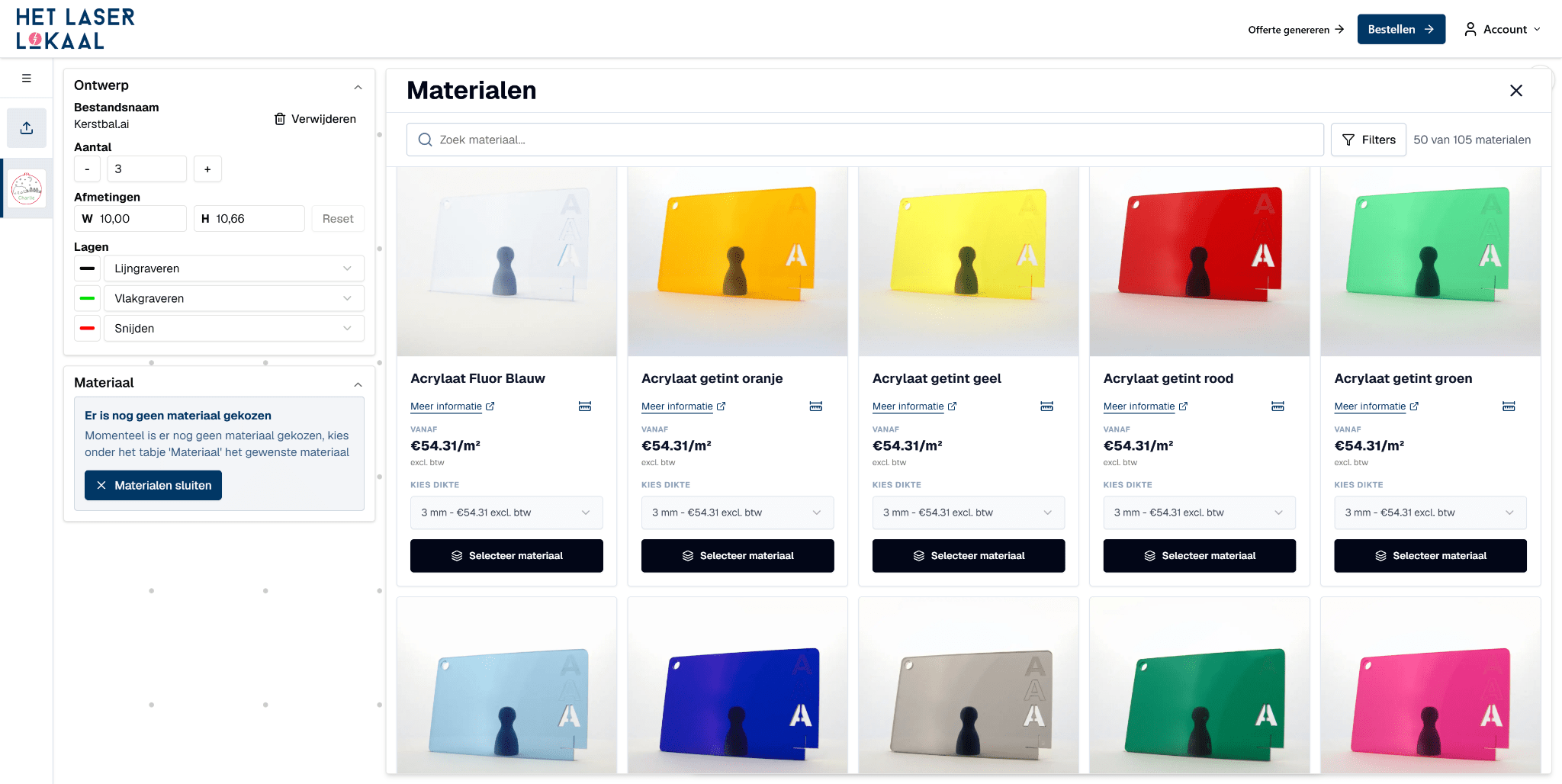
Choose your material
Compare materials →Open the material selector and choose the material and thickness for each design. You only see combinations that are currently available. Material and thickness affect appearance, stiffness, cut edge, available processes and price. Use the material selection guide if you are still unsure.
If you want to assess the colour and surface first, you can order material samples. A sample does not replace a prototype in the final material when fit or construction is critical.
-
Stap 5
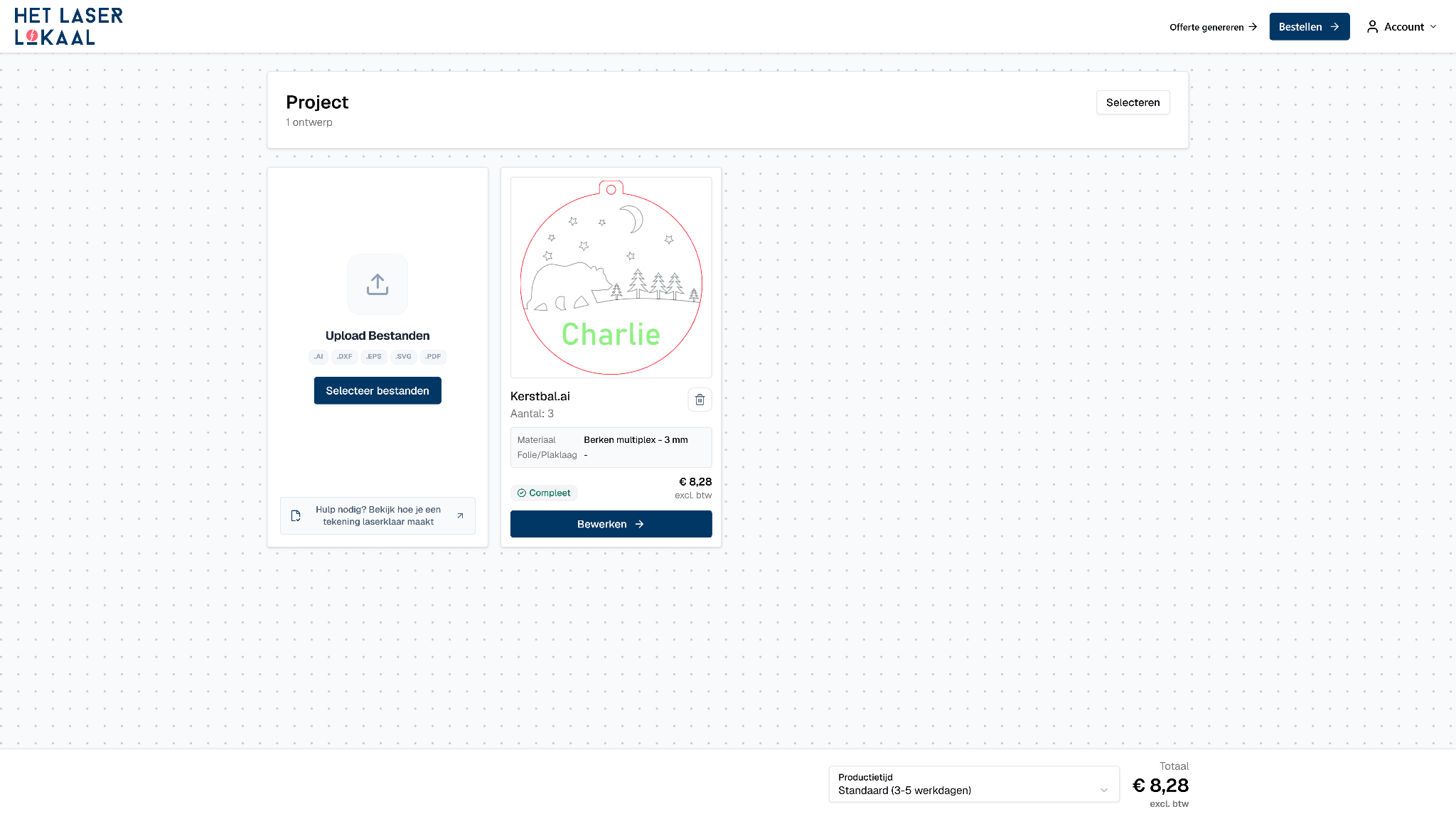
Check your project
Return to the project overview and check whether each file is marked as complete. Check the version, preview, size, quantity, operations, material, thickness and any foil options per file. Then check the project total.
Choose 'Generate quotation' to save the set order as a quotation for 30 days, or 'Order' to proceed to checkout.
-
Stap 6
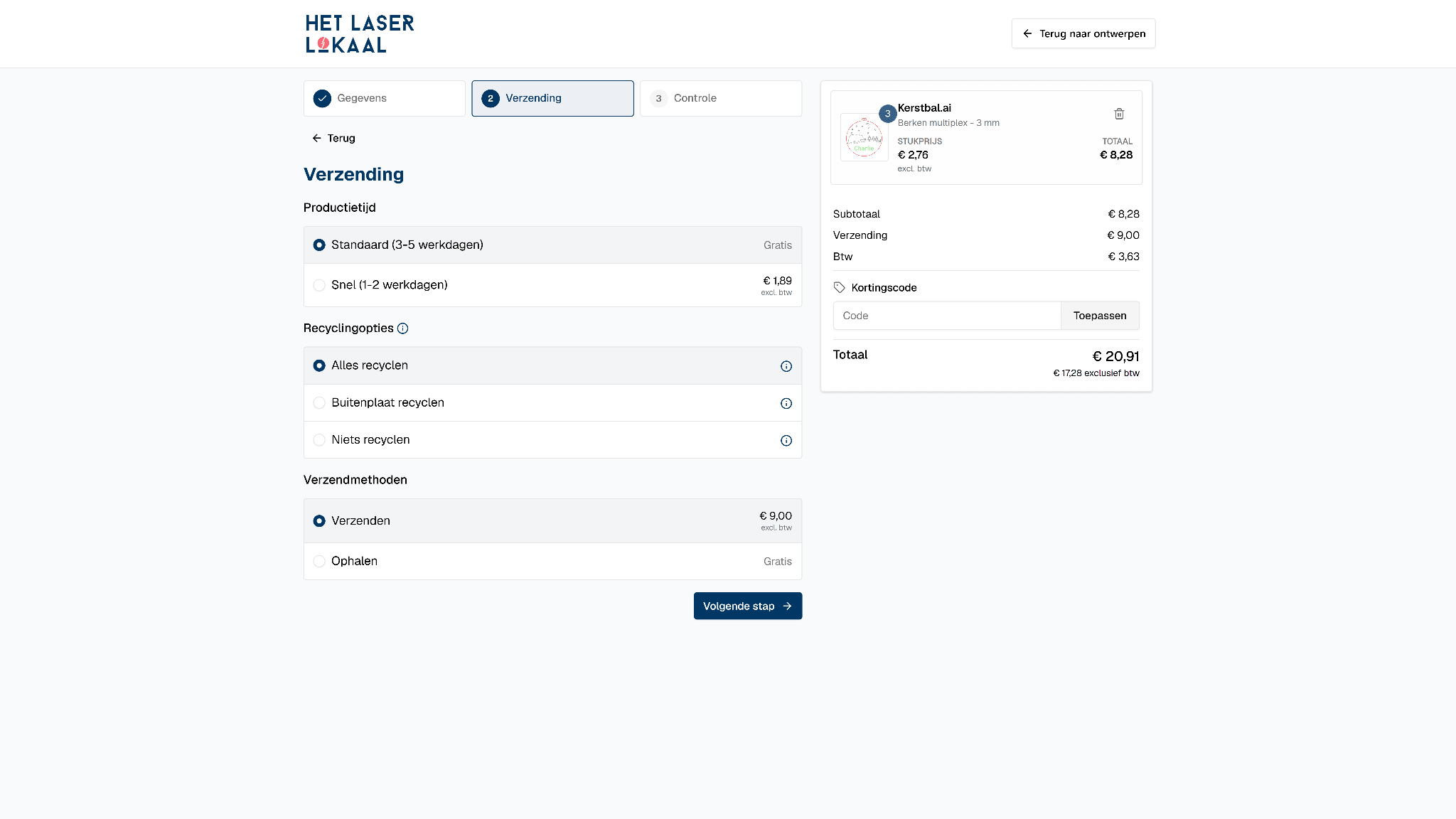
Complete your order
Walkthrough Data, Shipping and Control. Production speed and transportation are separate choices. Select the current production speed, indicate what happens to residual material and choose shipping or pick-up when those options are available for your order.
Then check files, quantities, material, total price, billing and delivery address and payment method. Accept the terms and conditions and complete the order. Save the confirmation and order number.
Price, quantity and smart settings
The price is based on the design, material use, material thickness, selected processes, dimensions and quantity. These factors affect one another. A small design with many cut lines or a large engraved area can require more production time than a larger, simpler part. Read the detailed explanation of laser-cutting costs.
For a production run, enter the full required quantity straight away. The portal recalculates the complete order; a large run does not automatically require a manual quote when the configuration can be processed online.
Remove duplicate lines and unnecessary details, and place parts compactly while maintaining the required spacing. The page on optimising a design for laser cutting lists more practical options. Do not change a design solely to reduce the price if that compromises fit, strength or function.
What happens to offcuts?
Material can remain around your parts after cutting. At checkout, choose what happens to those offcuts. Review the available option before completing your order.
Offcuts are not the same as an additional full sheet. Their amount and shape depend on the parts, quantity and layout. Read how the price is calculated for the material calculation.
Ordering, saving, quotation and on account
Order directly
Complete the order using the payment methods available at checkout.
Save your cart
Save a configured cart and continue later from your account. When you resume, always check the current price, material availability and production options.
Create a quote
Create a quote from the configured project, download or share the document, and reopen the order later to place it. A quote remains valid for 30 days. The current price, availability and schedule are shown when you order.
Business payment on account
With a valid VAT number and matching billing address, you can choose payment on account with a 30-day term at checkout. An account is optional, but makes it easier to find quotes, orders and repeat orders. Enter a PO number on the checkout page.
Read more about business ordering.
Your own material or a special specification
Do you want to use your own material, engrave an existing product or arrange special packaging or shipping? See additional services or discuss your requirements with us so the specification is clear before production.
A larger run can be calculated and ordered online when the material and required operations are available.
Problems while ordering
The preview is missing parts
Verify that the missing shapes are visible vector lines and not just a tessellation, mask, or pixel image. Correct the source file and upload a new version.
Pixels or text were skipped
Open the design details and check what is missing. For necessary shapes, use a correct vector version and convert editable text to outlines.
The size is wrong
Check millimeters, scale 1:1 and the export unit. Open the exported file again and compare a known size with the preview.
The wrong operation was chosen
Adjust the order per line color. If cutting and engraving lines have the same color but a different function, change the line colors in the source file.
Material or thickness is not available
Choose an available combination or compare a suitable alternative. A manual assessment is required for a non-standard version.
Reageert het portaal niet zoals verwacht? Usage 'Report a problem'. Your contact details and files will be sent automatically. More solutions are emerging Help with ordering online.
Final check of your order
- The correct files and file versions are in the order.
- Each upload preview corresponds to the intended laser work.
- Format, number and content per file are correct.
- All line colors have the correct edit.
- Material, thickness and any foil options are correct.
- Production speed and delivery choice have been checked.
- Billing address, delivery address and payment method are correct.
- A PO or reference number is completed when required.
- The total price and the entire order have been checked.
After ordering
Order again
Via your account you will find previous orders, quotes and saved shopping carts. When reordering, the file and all settings are taken over; only the price is recalculated. Please check the configuration before ordering and consciously upload a new file version when the design has changed.
Manage file versions
Save the exact production version you ordered and give each change a recognizable file name, date or revision number. For an adjustment, work from a copy and fully check the new upload. This keeps it clear which drawing belongs to which order and prevents an amended version from accidentally being treated as an unchanged repeat order.
Help with your order
If you get stuck in the portal, check out the help with online ordering. With 'Report a problem' your contact details and files are automatically sent. If your question concerns a placed order, always state your order number customer service. In the event of damage or a quality question, an overview photo and a clear detail photo help us to look more quickly.